FM27 Player Export for Mac turns FM27’s player and staff tables into CSV and HTML files. In short, you open a squad or a search, select the players and press F9. Then everything is ready to open in Numbers, Excel or Google Sheets. It is a free plugin by oeknudsen, made for Apple Silicon Macs.
What FM27 Player Export does
The plugin only reads what is on FM27’s screen. So it does not open your save, touch the game’s memory or change any FM file. It exports exactly the columns the current view shows, which means it is worth picking a view with the attributes you care about first.
It works on the Squad and Player Search screens. You select the rows you want, or all of them with Cmd+A, and press F9 (or Ctrl+P). The plugin then scrolls through the table by itself and saves two files: a CSV and an HTML copy.
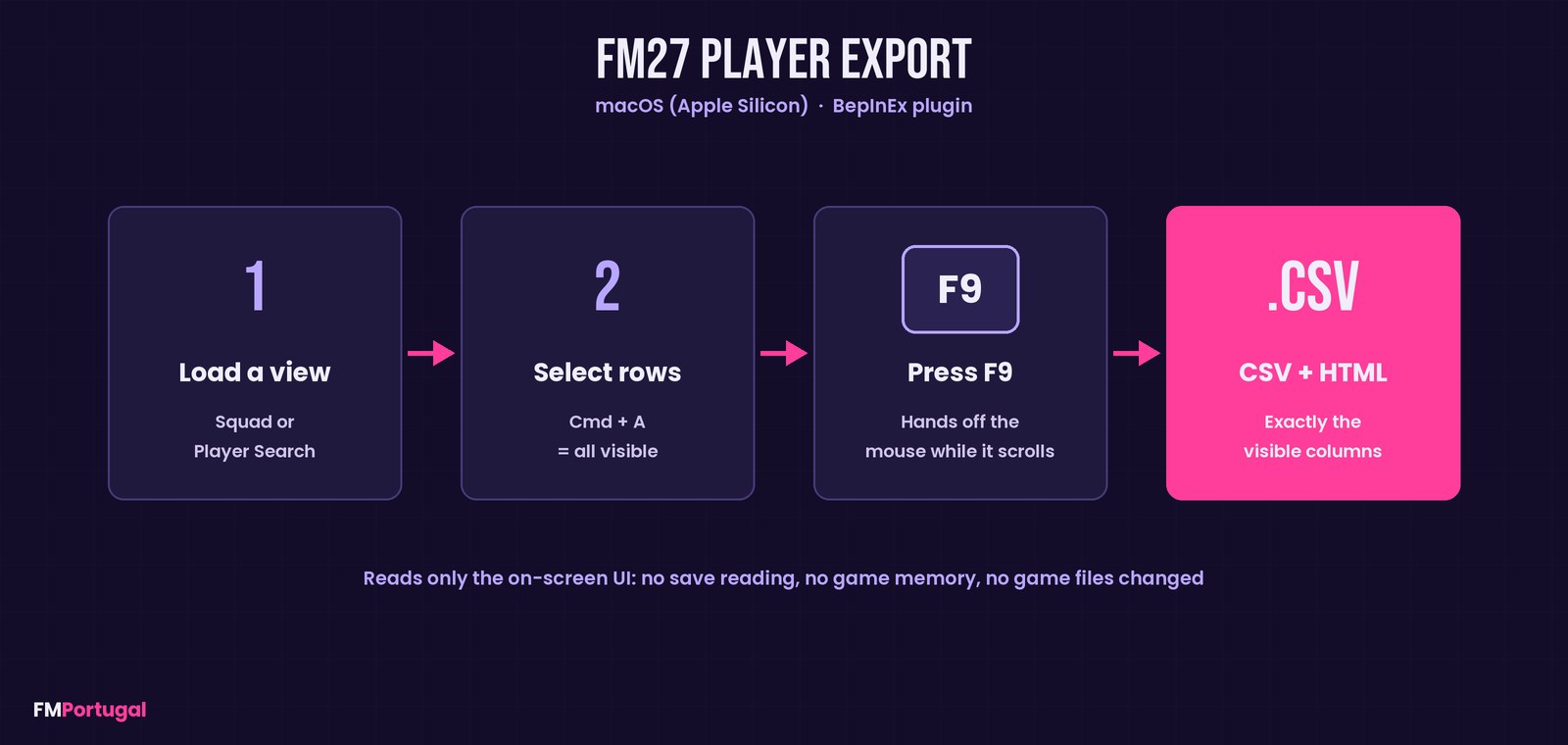
From an FM27 view to a CSV file in four steps (Image: FMPortugal)
Where this plugin comes from
The original idea is FM26 Player Export by vinteset. Later, DadMych brought it to the Mac for FM26, and oeknudsen took that version and ported it to FM27. The plugin also runs on sptndc‘s BepInEx for Mac, which is the mod loader. So the credit is shared between all four.
Files are saved to ~/Sports Interactive/Football Manager 27/FM26PlayerExport by vinteset/Exports CSV/. The folder still carries the FM26 name, but it really is the FM27 one. The CSV uses semicolons between columns and is UTF-8, while the HTML copies go into the Exports HTML folder next to it.
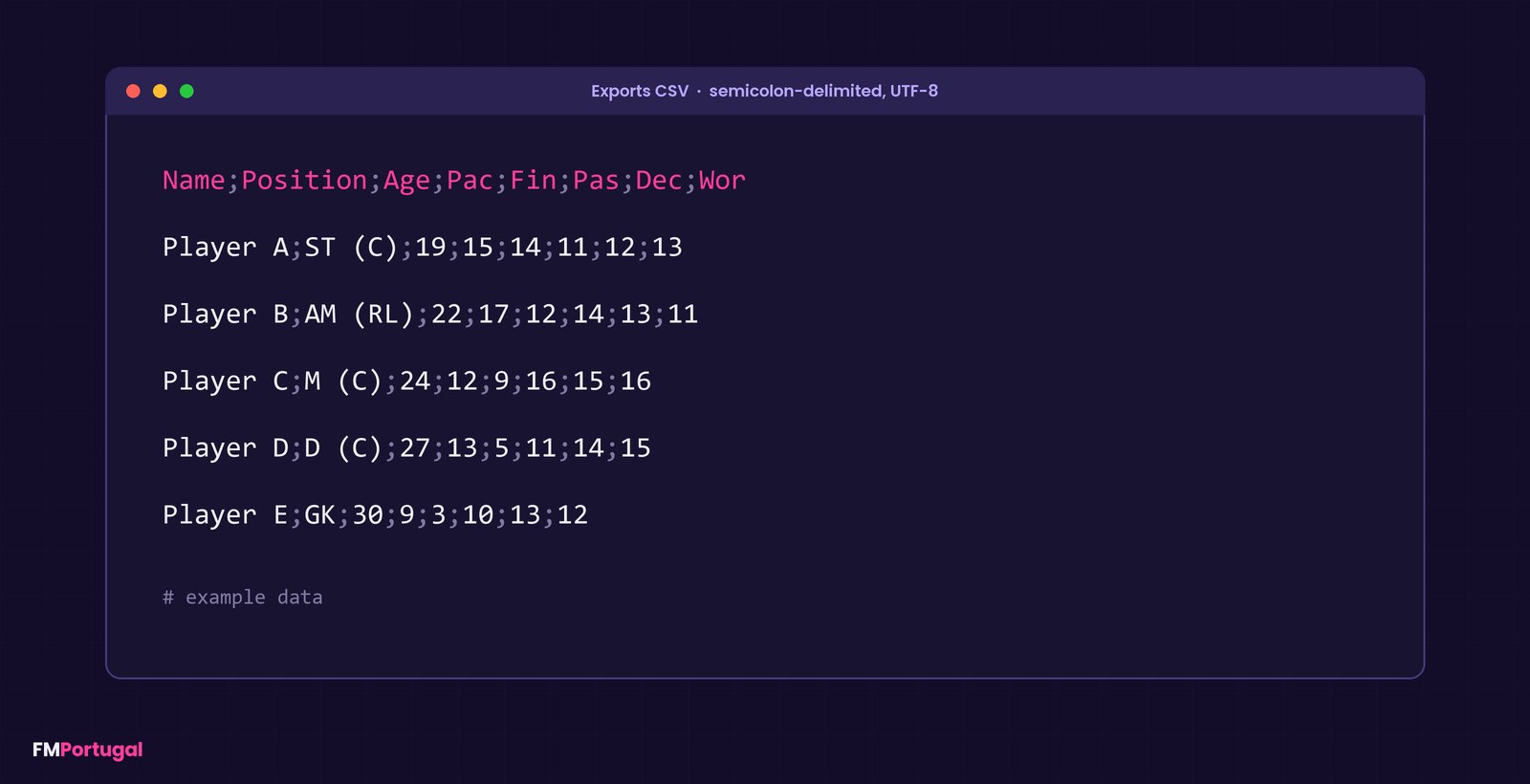
A sample CSV with made-up data (Image: FMPortugal)
Who it is for
It is for Mac players who like to analyse their squad or searches outside the game, with charts and formulas. For example, you can compare dozens of targets at once in a spreadsheet. If you are after more Mac tools, see our Mac tools for FM27 and FMSuperScout, which now runs on the Mac as well.
Download FM27 Player Export
The version is 1.0.1, from 6 November, and the file is a .dll of about 37 KB. This release fixes exports that only had headers and no players. It works on macOS with Apple Silicon (M1 to M4), was tested on macOS 27 and needs FM27 on Steam.
Download – FM27 Player Export v1.0.1
- First, install sptndc’s BepInEx for Mac and set the Steam launch option it gives you. In that option, replace the word
USERNAMEwith your macOS username. - Then install Rosetta 2 in Terminal with
softwareupdate --install-rosetta --agree-to-license. - Next, start FM27 from Steam, wait for the main menu and quit. This creates the
pluginsfolder. - After that, copy
FM27PlayerExport.dllinto.../Football Manager 27/FM27-BepInEx/BepInEx/plugins/FM27PlayerExport/. - Finally, start FM27.
Already had version 1.0.0? Just replace the old FM27PlayerExport.dll with the new one in the same folder.
Things to watch
While the plugin scrolls through the table, keep your hands off the mouse. If an export comes out empty or with a single column, use a view with real attribute columns. Also, star columns (Ability and Potential) are not yet confirmed on FM27, although text and attribute columns work.
If you get OS Error 260, Rosetta is missing. If the game will not start, the Steam launch option still has the word USERNAME in it. If F9 does nothing, check that a BepInEx/LogOutput.log file exists and that you are on a squad or search screen. Finally, the plugin only works on Apple Silicon Macs. To remove it, delete the FM27PlayerExport folder inside plugins.
The files are hosted by their original authors. FMPortugal only points to the official download page — all credit goes to their creators.
Did you make this download? Manage it on FMPortugal →