FM Graphics Manager is a small free app that keeps your FM27 and FM26 skins, facepacks, logos and kits in order. You drop in the packs you have downloaded, try them one at a time, combine several and go back to the original game whenever you like. It is by djbencheung, the maker of the Right Mate app, and it runs on Windows and Mac. It also grew out of a simple problem: the more packs the author downloaded, the harder they were to manage.
Not to be confused with FM27 Graphics Manager
The names are almost identical, but these are two different apps by different authors. FM27 Graphics Manager, by SiRRAHx, is Windows only and fetches the best-known packs from a list so it can download and update them. FM Graphics Manager, the app in this article, does not download anything: you bring the packs and it organises them. On the other hand, it also handles skins and has a Mac version.
What FM Graphics Manager does
- Add packs: first, you drop a ZIP or a folder into the window and the app puts the pack in the right place.
- Switch on and off: you enable packs one by one or several at once.
- Merge facepacks: when two packs have a face for the same player, you pick the one to keep. Then the app writes the
config.xmlfor you. - Skins: you use one at a time. If a skin replaces game files, the app backs up the originals first; FM default puts everything back.
- Colours: finally, you can fine-tune a few skin colours, such as buttons, borders and attribute levels, without changing the skin itself.
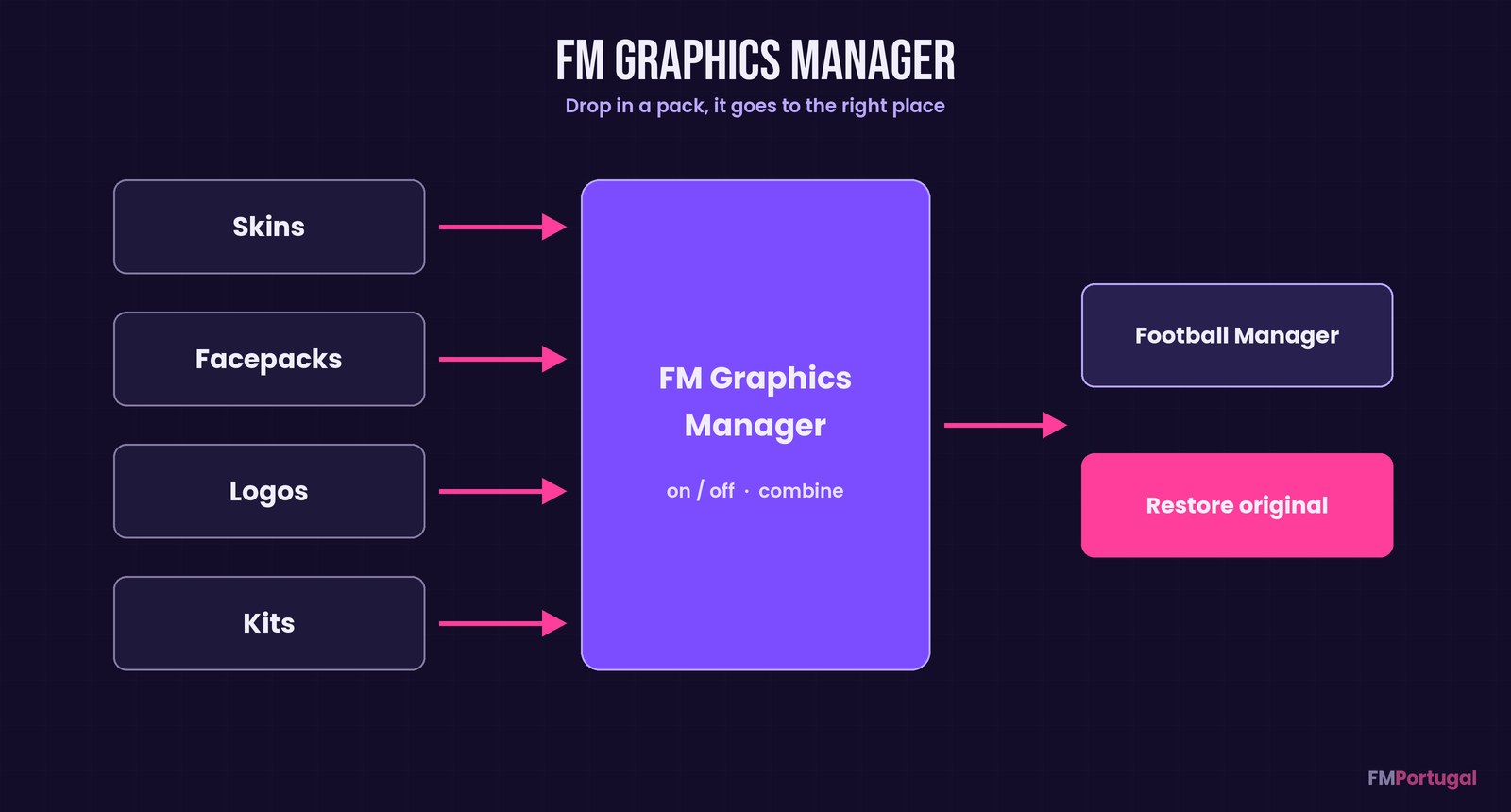
Packs go into the app and it puts each one in the right place (Image: FMPortugal)
What changed in 1.0.2
The skins page is now simpler. At the top you see how the game looks right now and, below, a single list of your skins with FM default first. So you just press Use this on a skin to switch to it. If a skin can only be picked inside the game, the app writes the last step right under it. On Mac, the colour picker and the attribute colour bands were fixed too.
Version 1.0.1 had already turned your colour tweaks into a skin of their own, named «<skin> · my colours». To see it, pick it in FM under Preferences > Skin and press Reload Skin. It also started flagging new versions, checking once a day, and you can turn that off in the settings.
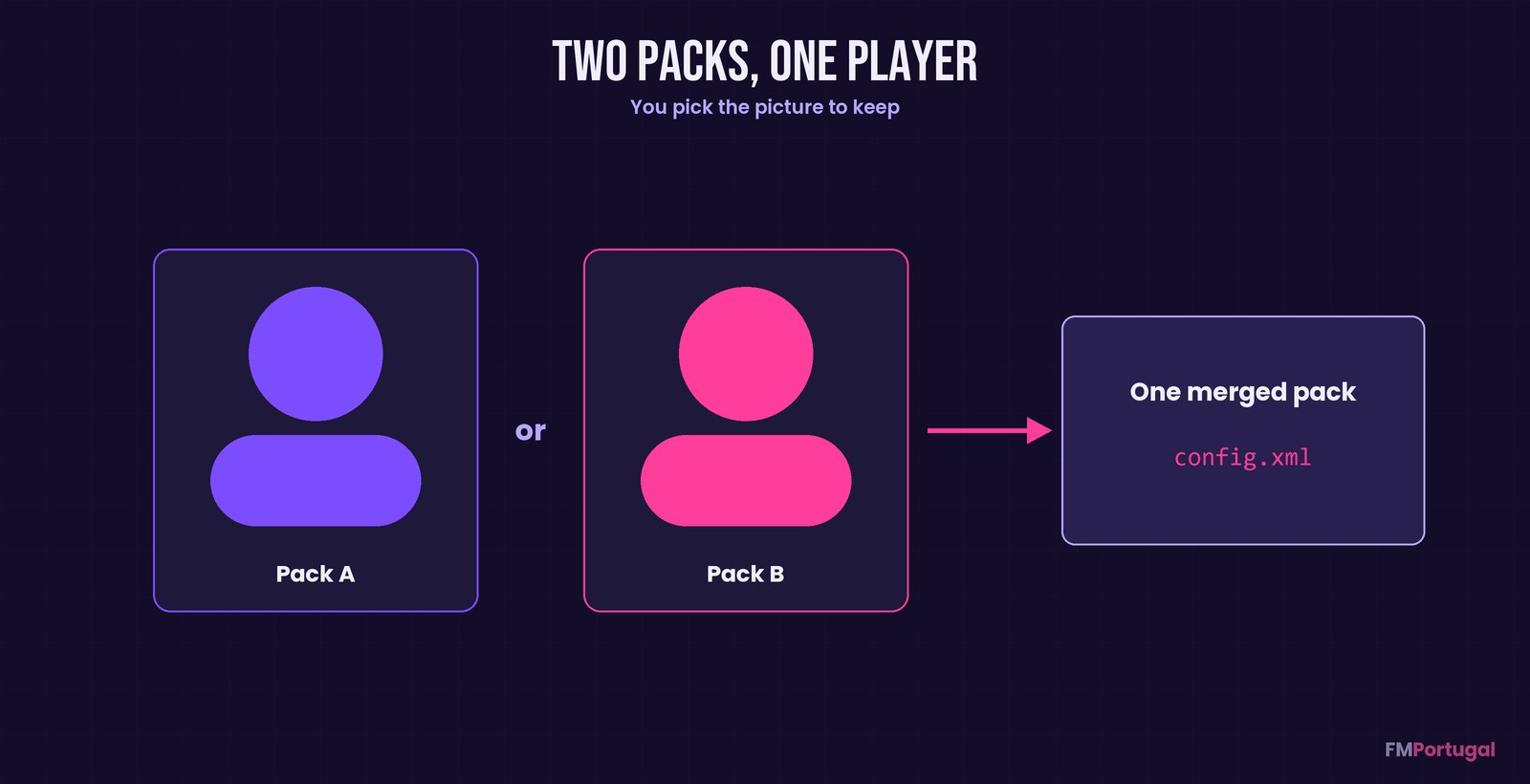
Two packs with the same player: you choose which face stays (Image: FMPortugal)
Who it is for
It is for anyone who already has several packs and is losing track of what is installed. For example, you can run DF11 Faces and another facepack together without duplicate faces. It also helps if you try lots of skins and want to get back to the original game in one click. If you only need to switch skins, FM 27 Skin Manager does the job as well.
Download FM Graphics Manager
The latest version is 1.0.2, from 8 November. On Windows (64-bit, 10 or 11) it is a ZIP of about 66 MB with nothing to install. On Mac it is a DMG under 2 MB, for Apple Silicon Macs only (M1 or later) running macOS 14 or later. Intel Macs are not supported.
Download – Windows Download – Mac
Windows
- First, download the ZIP and extract it.
- Then run
FMGraphicsManager.exe. If Windows says it protected your PC, click «More info» and then «Run anyway».
Mac
- Open the DMG and drag FM Graphics Manager into Applications. The app is signed and notarised by Apple.
Had an older version? Just replace it with the new one. Your packs and settings stay.
Things to watch
The app only changes how the game looks: it never touches your saves, the match engine or the database. It does not host or share anyone’s packs either, so you download each pack from its maker. It only goes online to check for a new version or when you choose to send a problem report, and it shows you what will be sent first.
To remove it, first press Restore original if you use a skin and switch off the packs you no longer want. Then quit the app and delete it: on Mac, drag it to the Bin; on Windows, delete the folder. That way, FM is back to how it was. Finally, if you make skins and do not want players tweaking your colours, add an fmgm.json file with {"colourTweak": "deny"} to your skin folder.
The files are hosted by their original authors. FMPortugal only points to the official download page — all credit goes to their creators.
Did you make this download? Manage it on FMPortugal →