Your first save in a new Football Manager shapes many hours of play. But it is easy to hit the start button without checking the options, and only spot the problem months later. So we have gathered the settings that matter most when you set up your FM27 save, based on the FM Blog guide and our own experience.
There is no single recipe. Still, some choices are best made right at the start, because a few cannot be changed mid-career. So let us take it step by step.
Which leagues to load
First, think about your journey. Where will you start? Where do you want to go next? The leagues you load as playable are the ones the game fully simulates. So if you dream of managing in England five seasons from now, it makes sense to load it from day one.
Also, think about the markets where you will buy. A loaded league has matches, stats and players developing more realistically. That makes it easier to judge the players there when you go to sign them. But note: a country being in the game world does not mean every division is available to manage. Check the league screen before picking your club.
- Liga Portugal career: load Portugal with the divisions you will actually use. If you start in Liga 2, for example, you need it and the top flight.
- Nearby markets: add Spain and Brazil, two natural markets for a Portuguese club. Then the players you follow will play in fully simulated leagues.
- No excess: every extra league weighs on processing. So pick the ones in your plan, not every one you fancy.
If you have not picked a club yet, see our best sleeping giant challenges for FM 2027.
Database size and speed
Next comes the database size. The more players you load, the fuller the game world becomes. However, processing between matches gets slower, especially on a modest computer.
In other words, it is a trade-off between depth and speed. On a powerful PC, a bigger database pays off, because more players appear for you to discover. But if your computer already struggles with a few leagues, lower the size before cutting leagues you need. To see where your machine stands, try our FM27 PC Rater.
Also, before you start, check the estimated player count and the speed indicator on the setup screen. Still, treat it as an estimate. If you are unsure, create a test career and play a few days before committing to a long save.
The advanced options that change your save
The advanced settings screen has several toggles that are easy to miss. However, some of them change the experience a lot.
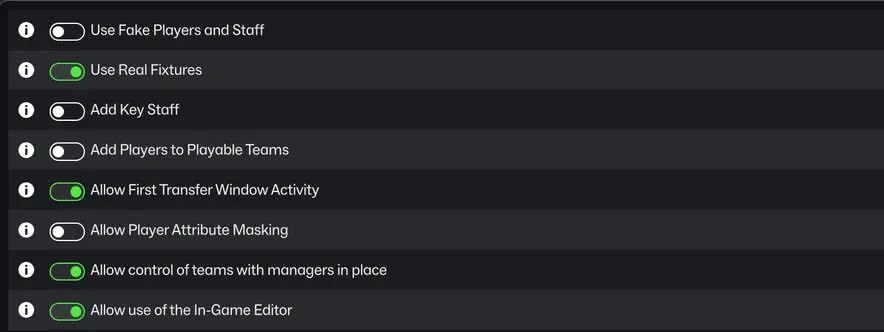
The advanced options for a new save in FM27 (Image: FM Blog / Sports Interactive)
- Attribute masking: with Allow Player Attribute Masking on, you only see accurate attributes for players your scouts know. So scouting matters again. With it off, you see everything from day one.
- First transfer window: with Allow First Transfer Window Activity on, you can reshape your squad from day one. With it off, the challenge changes: make the squad you inherit work before going to the market.
- Fake players: Use Fake Players and Staff swaps real players for generated ones. It only makes sense if you want a challenge where you know nobody. Also, it is not a way to fix a missing player such as Max Dowman.
- In-game editor: Allow use of the In-Game Editor must be on here so you can use the FM27 in-game editor later.
- Staff, squads and jobs: Add Key Staff and Add Players to Playable Teams fill missing roles and squad places in playable teams. Finally, Allow control of teams with managers in place lets you take over a club that already has a manager.
Install the name fix before you start
Before creating your career, install the FM27 real names fix and keep a backup. The FM Blog makes an important point: a names file can change an existing career after you restart the game. However, it cannot bring back players or staff that were removed from the database when the career was created. So if that is your reason, start a new career after installing it.
Meanwhile, remember that faces, logos and kits are a separate thing. They improve how the game looks, but they do not change the leagues or the players you load.
Continue Flow: how many stops you want
Continue Flow sets how often the game pauses processing to show you news. It has three levels, and the choice depends on your style.
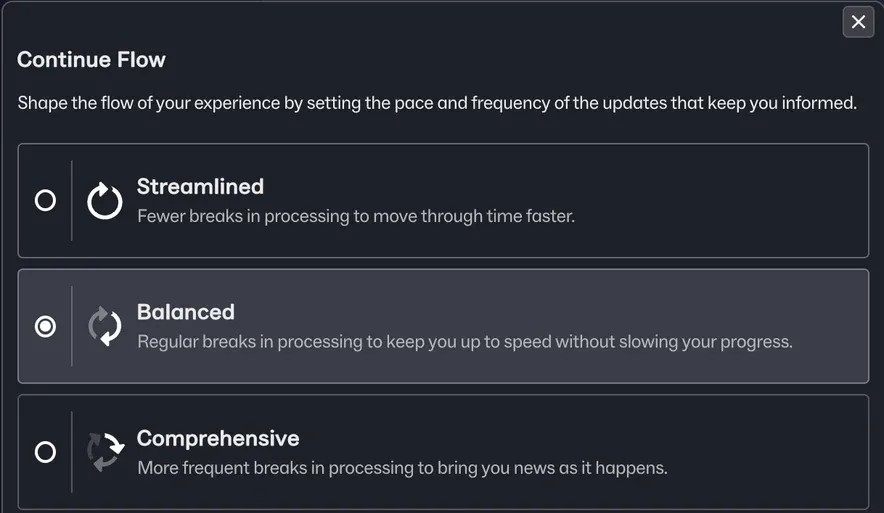
The three Continue Flow options in FM27 (Image: FM Blog / Sports Interactive)
- Streamlined: fewer stops, so you move through the calendar faster. For example, it suits anyone who wants to get to match day quickly.
- Balanced: regular stops without slowing you down much. It is the middle ground and works for most players.
- Comprehensive: more stops, so you see news as it happens. But the season moves more slowly.
If you are not sure which to choose, start with Balanced. Then adjust as you go.
Auto saves: do not take risks
Finally, the part that saves careers. In the preferences, turn on auto saves and choose a weekly frequency. Also, use several rolling files: with three, you always have two older copies if one save gets corrupted.
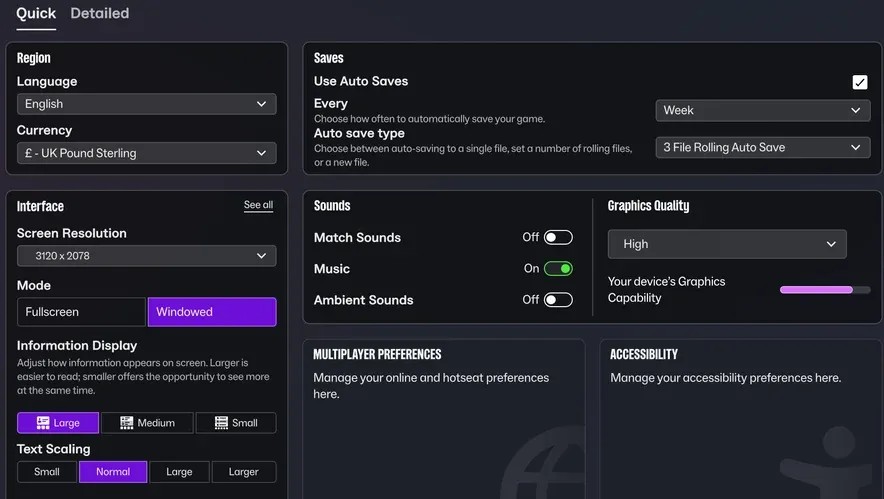
Weekly auto saves with three rolling files (Image: FM Blog / Sports Interactive)
Even so, do not rely on auto saves alone. Before a big decision, such as a major sale or deadline day, save manually to a separate file. Then, if it goes wrong, you have a safe point to go back to. The FM Blog also recommends a manual copy as soon as you finish setting up the career.
Our take
Most of the saves we abandon die because of choices made in the first minute: too many leagues, a PC that crawls or a corrupted file with no backup. So it is worth spending five minutes on these options. For a Portuguese career, our recipe is simple: Portugal with the right divisions, Spain and Brazil as markets, attribute masking on and weekly saves with three files. After that, just pick your club and get started.