Updated version: FM26 real names fix
This file needs to be applied again whenever new patches official ones are released, to ensure full compatibility.
Some files are removed when those same patches are released, which is why you need to apply this fix again.
Some of these changes, especially club names, may not work in the Beta, FM Touch or in games already started, but there is a fix for those cases, which you can see below
And if you want to change the team names to the real ones, there is an alternative, but in exchange you will lose the team nicknames.
Open the file City, Club and Stadium Names.lnc in Notepad (Windows) or TextEdit (on Mac).
Delete the hashtags (#) before the full and short names of the clubs you want, and the names will be fixed in these versions.
In Notepad, all you need to do is: open the Edit menu, choose Replace, type #”CLUB in Find and “CLUB em substituir por, e por fim carregar em substituir tudo. Grava e fecha. O processo demora segundos a ser concluído.
Basically, instead of:
#”CLUB_LONG_NAME_CHANGE” 915 “FC Bayern München” “”
You get:
“CLUB_LONG_NAME_CHANGE” 915 “FC Bayern München” “”
This file, developed by Sortitoutsi , fixes fake names, awards, cities, stadiums and even competitions.
It also fixes the problem of some national teams not calling up real players.
It includes a file that changes club names (Brazil, Portugal, Italy, etc.) that are wrong or incomplete in the database to their best known version.
Fixes the colours of the Brazilian teams.
Finally, it includes real media outlets from the most relevant countries.
Follow the instructions to install this file:
Step 1: Abre
Program Files (x86)\Steam\SteamApps\common\Football Manager 2019\data\database\db\1900
APAGA as pastas dbc, edt e Inc Abre
Program Files (x86)\Steam\SteamApps\common\Football Manager 2019\data\database\db\1910
APAGA as pastas dbc, edt e Inc Abre
Program Files (x86)\Steam\SteamApps\common\Football Manager 2019\data\database\db\1930
APAGA as pastas dbc, edt e Inc
Bear in mind they don't always go into the folder:
\Program Files (x86)\
Sometimes it may go into:
\Program Files\
For MAC
Abre / Users / username / Library / Application Support / Steam / SteamApps / common / Football Manager 2019 / data / database / db / 1900
APAGA as pastas dbc, edt e Inc Abre
/ Users / username / Library / Application Support / Steam / SteamApps / common / Football Manager 2019 / data / database / db / 1910
APAGA as pastas dbc, edt e Inc Abre
/ Users / username / Library / Application Support / Steam / SteamApps / common / Football Manager 2019 / data / database / db / 1930
APAGA as pastas dbc, edt e Inc
For Android
Abre
sdcard\Android\data\sportsinteractive.fm19\files\installed\data\\database\db\1900
APAGA as pastas dbc, edt e Inc Abre
sdcard\Android\data\sportsinteractive.fm19\files\installed\data\\database\db\1910
APAGA as pastas dbc, edt e Inc Abre
sdcard\Android\data\sportsinteractive.fm19\files\installed\data\\database\db\1930
APAGA as pastas dbc, edt e Inc
For Game Pass
Abre
appdata-local-packages-SportsInteractive(with a lot of random numbers)-Localcache-Local-Microsoft-WriteablePackageRoot-data\database\db\1900
APAGA as pastas dbc, edt e Inc Abre
sdcard\appdata-local-packages-SportsInteractive(with a lot of random numbers)-Localcache-Local-Microsoft-WriteablePackageRoot-data\database\db\1910
APAGA as pastas dbc, edt e Inc Abre
sdcard\appdata-local-packages-SportsInteractive(with a lot of random numbers)-Localcache-Local-Microsoft-WriteablePackageRoot-data\database\db\1930
APAGA as pastas dbc, edt e Inc
Step 2: Copy the dbc, edt and lnc folders in this download
Step 3: Paste each of them in the location mentioned in step 1.
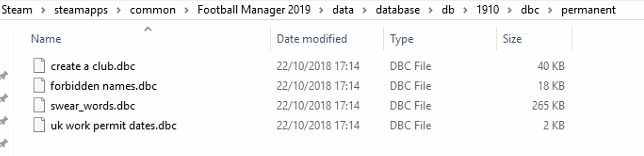
When correctly structured, the files should look like this inside the 1910 folder:
dbc/permanent:
edt/permanent:
lnc:
Step 4: Copy the 7 files located inside the EDITOR DATA FILES folder of the file you downloaded
Step 5: Paste in:
\Documents\Sports Interactive\Football Manager 2019\editor data
For Game Pass
\Documents\Sports Interactive\Football Manager 2019\\GAMEPASS\editor data
Your editor data folder should look like this after this process.
You will probably have to overwrite the changes in the config.xml file in this folder.
Again, the changes in the editor data folder must be added before starting a new game, for the club names to be fixed correctly.